
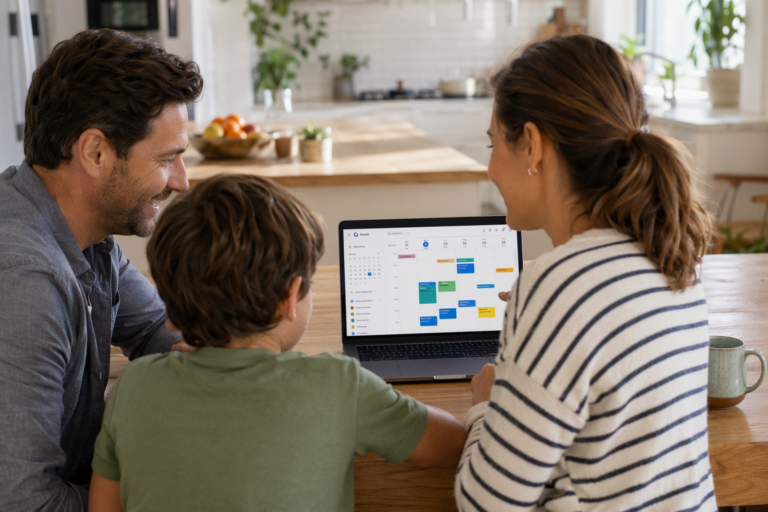
If your google family calendar still feels like a patchwork of texts, school emails, and “Wait, who’s picking up the baby?” messages, you’re not alone. The average working parent is juggling too many moving parts at once, which is exactly why a smarter system for shared family scheduling matters. In this guide, you’ll learn how to turn Google Calendar into a practical family command center using Zua, an AI family assistant that adds family calendar sync, calendar conflict detection, and a cleaner way to keep everyone aligned.
Google Calendar is already the backbone for many families, but by itself it often stops short of solving the real problem: coordinating who does what, when, and with whom. Zua solves that gap by reading from your existing calendars, helping you spot conflicts early, and optionally exporting family events back into Google Calendar—either into a dedicated family calendar or an existing one. The result is a setup that feels less like manual admin and more like an intelligent family organizer app.
Why a google family calendar alone is not enough
Google Calendar is excellent for storing events, but family life needs more than storage. Parents need visibility into work meetings, school pickups, nursery drop-offs, after-school clubs, birthdays, and chores—all at once. That’s where the limitations show up:
- Events are easy to create, but hard to coordinate. One parent may add a dentist visit without realizing the other has a client call.
- Shared calendars can become cluttered. School reminders, appointments, and chores can all blur together.
- Conflicts are often discovered too late. You only notice the double-booking when someone is already late or stressed.
- External helpers are hard to include safely. Grandparents, nannies, and babysitters need access to only the right information.
According to Pew Research Center, smartphone and digital tool usage is now deeply embedded in daily family routines, which means families need systems that reduce friction—not add to it. A google family calendar should do more than mirror your life; it should help run it.
How to set up a google family calendar with Zua
Zua now fully integrates with Google Calendar, giving each family member control over how their calendars connect. You can choose to:
- Read only from Google Calendar to scan for suitable family entries
- Export Zua family entries and tasks into Google Calendar
- Do both for two-way family calendar sync
Here’s the most practical setup for busy families.
Step 1: Connect the Google accounts you actually use
Start by linking the Google accounts that matter: personal calendars, work calendars, and any shared family calendar already in use. Zua can read those calendars to build a unified family view while respecting the access level you choose.
Tip: If one parent uses a work calendar that is partially shared, keep that account in read-only mode if you only want Zua to analyze availability without exporting anything back.
Step 2: Decide what belongs in the family calendar
Not every event should be shared the same way. With Zua, you can decide whether an item is:
- Just for you
- Shared with the family
- Shared only with specific external members such as a grandparent or babysitter
This granular privacy is crucial for families who want the benefits of a google family calendar without broadcasting everything to everyone. For example, a child’s doctor visit can be visible to both parents but hidden from a nanny.
Step 3: Turn on conflict detection before adding more events
One of Zua’s most useful features is calendar conflict detection. It checks imported calendars for overlapping commitments before they become a problem. If one parent is already in a meeting, Zua can help surface that immediately so you don’t accidentally assign the same time slot to a school run or practice pickup.
This matters because schedule disruptions have a real cost. The American Psychological Association has reported that stress levels remain a major concern for adults, and family scheduling chaos is a common contributor. See the APA’s stress resources at apa.org/topics/stress.
Step 4: Choose where Zua exports events
With Zua’s Google Calendar integration, you can export family calendar entries and tasks into:
- a dedicated new family calendar, or
- an existing calendar you already use
This is a major advantage if you want to keep your google family calendar clean. For example, you could keep school-related tasks in one shared family calendar and personal reminders in another. That structure helps reduce noise while keeping everyone aligned.
Build a shared family scheduling system that actually works
A good shared family scheduling system is not just about visibility. It’s about reducing decision fatigue and making responsibility clear. Here’s a model many families can use:
| Item type | Where it should live | Who should see it | Example |
|---|---|---|---|
| Personal appointment | Private calendar | Just you | Therapy session, work meeting |
| Family event | Shared family calendar | Both parents | School concert, birthday party |
| Task or chore | Zua task list + exported calendar if needed | Relevant caregiver only | Bin collection, pickup duty |
| External helper item | Restricted share | Nanny, grandparent, babysitter | Tuesday school run |
When you use this structure, your google family calendar becomes a source of truth instead of a dumping ground. That means fewer “Did you see my message?” moments and more confidence that the right person knows the right thing.
Use Zua to reduce calendar conflict detection headaches
Most family scheduling conflicts are not dramatic; they’re cumulative. A doctor appointment overlaps with a school pickup. A work call collides with football practice. A forgotten calendar entry turns into an argument. Zua’s conflict detection helps stop those moments before they escalate.
Here’s how to use it well:
- Import all relevant calendars. Include personal, work, and shared family calendars where possible.
- Review conflicts weekly. Set aside ten minutes each weekend to scan for overlaps.
- Let Zua suggest alternatives. If a slot is blocked, use the AI scheduler to find a better time.
- Assign tasks based on actual availability. If one parent is busy, Zua can help route the task to the other parent.
- Keep external commitments visible. Sports, school events, and lessons should all be included, not remembered mentally.
The real value is not simply avoiding overlaps; it’s avoiding the mental load of being the only person who has to remember everything. That’s what turns a google family calendar into a genuine family operating system.
Make family calendar sync effortless with real-world inputs
One reason family schedules fall apart is that important details arrive in scattered formats: WhatsApp messages, school emails, screenshots, flyers, PDFs, and voice notes. Zua is built to capture all of that without turning you into a data entry clerk.
You can:
- Chat with Zua on WhatsApp
- Forward emails from school or activities
- Share screenshots of invitations or messages
- Use your phone’s Share/Send To menu from any app
- Talk to Zua naturally instead of typing everything out
This matters because family information rarely arrives in one tidy calendar invite. It arrives in the messy middle of life. Zua extracts the relevant date, time, and action, then helps you turn it into a calendar entry or task with the right visibility settings.
If you want a broader overview of the product capabilities, see Zua features.
How to share with grandparents, nannies, and babysitters safely
Many family calendar tools fail when they need to include someone outside the core household. Zua solves this with extended family members and granular privacy controls. That means you can add a grandpa, uncle, nanny, or babysitter and share only what they need.
Practical examples:
- Grandparent: share only school pickup on Friday afternoon
- Nanny: share the child-care schedule and relevant events for the day
- Babysitter: share the evening window and emergency contacts, not the full family calendar
This level of control is especially useful when your google family calendar is serving multiple people with different roles. You keep privacy intact while still making collaboration easy.
Best practices for a cleaner google family calendar
To keep your setup useful over time, follow these habits:
- Use one naming convention. Example: “School – Mia,” “Work – Alex,” “Family – Dentist.”
- Choose a single source of truth. If Zua is the family command center, avoid duplicating the same event in multiple places manually.
- Review imported items before export. Zua lets you review every event so nothing gets added accidentally.
- Separate appointments from actions. Put fixed events on the calendar and tasks in Zua’s action engine.
- Keep chores just-in-time. Zua’s chores only appear close to their due time, so the family doesn’t stare at a stress-inducing list all week.
That last point is underrated. Families often over-display chores and under-display context. Zua’s “just-in-time” approach avoids clutter and makes the day feel more manageable.
When a family organizer app beats manual coordination
A manual google family calendar setup can work for a while, but once your family becomes busier, it starts demanding too much attention. A family organizer app like Zua helps by combining calendar sync, task management, and contextual reminders in one place.
Use Zua when you need to:
- See everyone’s availability in one unified view
- Prevent scheduling mistakes before they happen
- Import events from email, screenshots, and messages
- Assign tasks to the right parent based on actual workload
- Share selectively with trusted helpers
If your current system relies on memory and group chats, you’re probably carrying too much invisible work. Zua helps make that work visible, shared, and easier to manage. To get started, you can try Zua free.
Frequently Asked Questions
What is the best way to use google family calendar for busy parents?
The best way is to combine Google Calendar with a system like Zua that adds family calendar sync, conflict detection, and task tracking. Google Calendar handles the events, while Zua helps you organize, route, and share them intelligently across the family.
Can Zua export events into my existing Google Calendar?
Yes. Zua can export family calendar entries and tasks into Google Calendar, either into a dedicated new calendar or into an existing one. Each family member can choose read-only access, export access, or both depending on how they want to manage their setup.
How does Zua help with calendar conflict detection?
Zua reads the calendars you connect, scans for overlaps, and flags double-bookings before they become a problem. It can also suggest better time slots and help assign tasks to the parent who is actually free.
Can I share only part of my family schedule with grandparents or babysitters?
Yes. Zua supports granular privacy, so you can share only specific events or time windows with external members. That makes it safer and more practical than exposing your entire google family calendar to everyone.