
If you’re searching for How to Share Iphone Calendar with Family, you probably want more than just the basic “tap this button” answer—you want a system that actually reduces missed pickups, double-booked appointments, and last-minute panic. The good news is that Apple already gives you several ways to share events, but the best setup depends on whether you need a simple shared calendar, a true iPhone Family Sharing calendar, or a broader family scheduling workflow that includes work calendars, school reminders, and babysitter access.
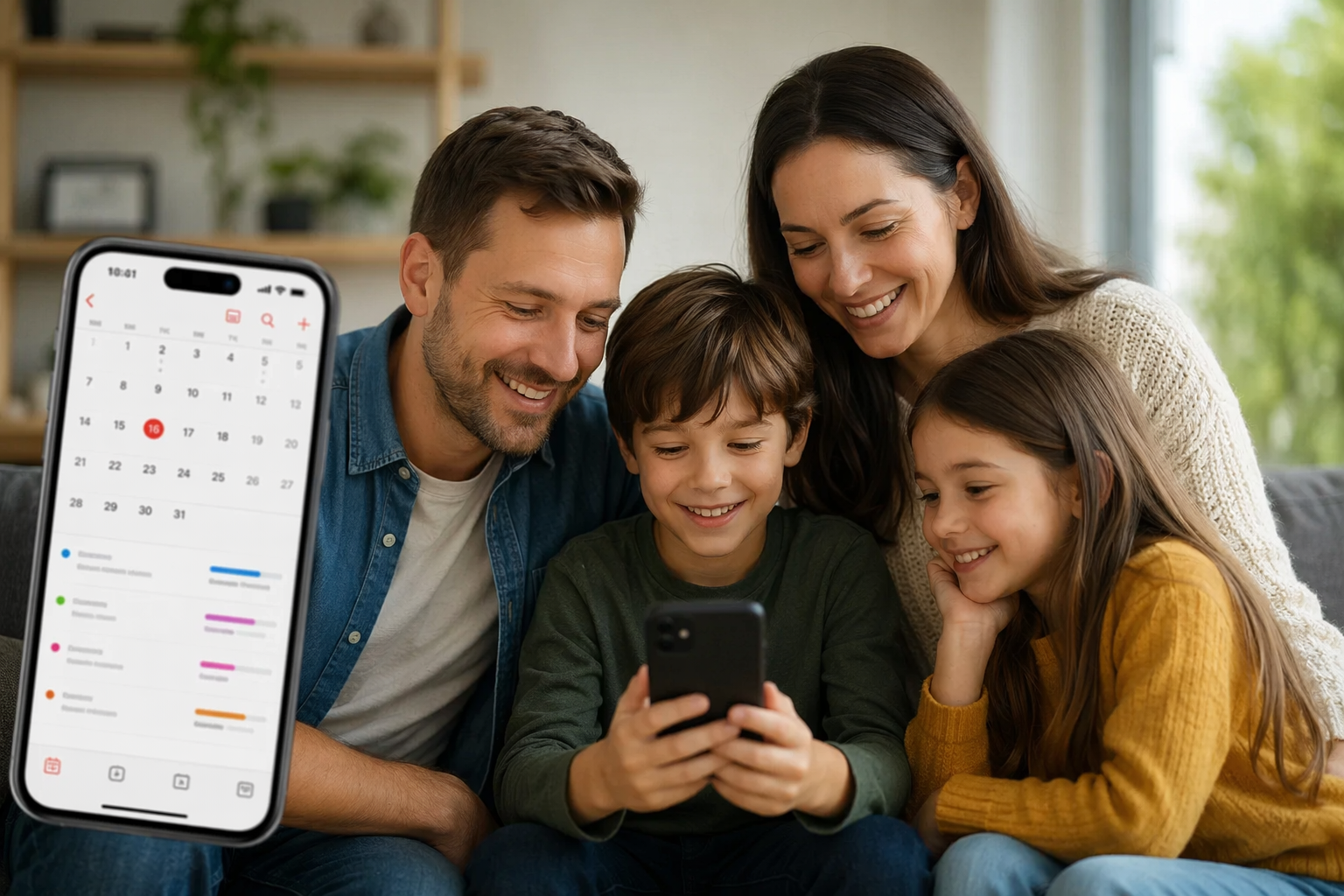
In this guide, I’ll show you the exact steps to share calendar on iPhone with family members, compare the main options, and explain how to set up a shared family schedule that busy parents can actually maintain. I’ll also show where family calendar sharing starts to break down—and how a tool like try Zua free can help you sync family calendars without turning your life into spreadsheet management.
How to Share Iphone Calendar with Family: The Fast Answer
There are three common ways to share an iPhone calendar with family:
- Create a shared calendar in the Calendar app and invite family members by email.
- Use iCloud Family Sharing to make sharing easier across Apple devices.
- Use a family scheduling app if you need more control, visibility, or cross-calendar syncing.
If your goal is a simple household calendar for school events, doctor appointments, sports practices, and date-night reminders, the built-in Calendar app is a good start. If your goal is to coordinate multiple caregivers, work calendars, and external family members, you may quickly need something more powerful than Apple’s default setup.
How to Share Iphone Calendar with Family in the Calendar App
Here’s the easiest way to share a calendar directly from your iPhone:
- Open the Calendar app on your iPhone.
- Tap Calendars at the bottom of the screen.
- Find the calendar you want to share, then tap the info icon next to it.
- Tap Add Person.
- Enter the email address of the person you want to invite.
- Tap Add or Done.
Once they accept the invitation, both of you can view and, depending on permissions, edit the same calendar. This is the simplest form of family calendar sharing, and it works well when everyone is already using Apple devices and iCloud.
Apple’s own support page explains calendar sharing and permissions here: Apple Support: Share iCloud calendars.
How to Use iPhone Family Sharing Calendar Settings
Many parents search for an iPhone Family Sharing calendar expecting a single magic toggle that automatically creates a shared family schedule. Apple’s Family Sharing is useful, but it’s important to understand what it does—and does not—do.
Family Sharing helps you share purchases, subscriptions, location, and some services with up to six family members. It does not automatically create a fully unified calendar for all family events. In other words, it’s a helpful household framework, but you still need to create or share calendar events separately.
If you want your family calendar to live inside the Apple ecosystem, the practical setup is:
- Turn on iCloud for Calendar on each device.
- Create a dedicated shared family calendar.
- Invite each family member to join.
- Use color coding for work, kids, school, and personal events.
This works best if everyone consistently uses the same Apple ID ecosystem and remembers to add events to the shared calendar—not just their personal one.
Step-by-Step: Share Calendar on iPhone with Family Members
If you want a clean family schedule that doesn’t get lost in personal events, follow this process:
1. Create a dedicated family calendar
Open Calendar, tap Add Calendar, and create something obvious like “Family,” “Kids,” or “Household.” Avoid vague names. The easier it is to recognize, the more likely everyone will actually use it.
2. Share it with the right people
Tap the calendar’s info button and invite both parents, co-parents, grandparents, or trusted caregivers. Only invite people who truly need visibility. For example, a babysitter may not need access to your work meetings, and a grandparent may only need school pickup times.
3. Set expectations for what goes in the shared calendar
To avoid clutter, decide as a family what belongs there. A good rule:
- Shared calendar: school events, kids’ activities, appointments, travel, childcare handoffs
- Personal calendar: private meetings, solo errands, confidential work items
4. Use alerts and location-friendly timing
Set alerts for the kinds of events most likely to cause family stress—school pickup, doctor visits, and sports practice. If your calendar is doing the job well, it should reduce “Where are you?” texts, not create more of them.
5. Make one person responsible for calendar hygiene
A family calendar only works if someone maintains it. Choose a primary “calendar owner” to review upcoming events each week, resolve conflicts, and make sure details are complete.
Why Family Calendar Sharing Breaks Down in Real Life
Even if you know How to Share Iphone Calendar with Family, the hard part is maintaining it consistently. In many households, the problems aren’t technical—they’re behavioral:
- Events are added to personal calendars instead of the shared one.
- Work calendars don’t sync, so conflicts appear too late.
- School messages live in email, not in the calendar.
- One parent sees the event, but the other doesn’t.
- External caregivers can’t be added cleanly.
This is why a shared calendar can help, but still fail to give you a real-time view of family life. Parents don’t just need events—they need context. Who’s free? Who’s traveling? Who can do the school run if one parent has a meeting?
That matters because working parents are still facing intense scheduling pressure. In a Pew Research Center report, most working parents said juggling work and family is a challenge, which is exactly why a basic calendar often isn’t enough. A shared family schedule has to reduce decision fatigue, not add to it.
Best Practices for a Shared Family Schedule
If you want your calendar to stay useful, use these best practices from day one:
Use one event title style
Standardize titles so everyone knows what they mean. For example:
- “Leo – Soccer Practice”
- “Mia – Doctor Appointment”
- “Family – School Fair”
Consistent naming makes scanning the week much faster.
Add the important details inside the event
Don’t just write “appointment.” Add location, child name, prep items, parking notes, and any special instructions. When you’re rushing out the door, these details are the difference between calm and chaos.
Color-code by person or category
Color helps your brain read a week at a glance. A common approach is:
- Blue = work
- Green = kids
- Orange = family
- Red = urgent or fixed commitments
Review the week every Sunday
A 10-minute weekly check-in prevents 80% of schedule surprises. Look for:
- double bookings
- late pickups
- travel days
- needs for childcare coverage
Keep private and shared events separate
Not every event belongs in a family calendar. If your calendar is overloaded with work details or personal reminders, people will stop trusting it. Use separate calendars for personal, work, and family life when possible.
When Apple Calendar Is Enough—and When It Isn’t
Apple Calendar is enough if you need:
- a simple shared family calendar
- basic invitations and reminders
- everyone using iPhone and iCloud
But it’s usually not enough if you need:
- to sync family calendars with work calendars automatically
- to share only certain events with certain people
- to manage babysitters, grandparents, or nannies with limited access
- to detect conflicts across multiple calendars
- to turn messages, emails, and screenshots into events without manual entry
| Need | Apple Calendar | More advanced family assistant |
|---|---|---|
| Simple shared family schedule | Yes | Yes |
| Granular privacy by person | Limited | Yes |
| Auto-detect conflicts | Limited | Yes |
| Combine work, school, and household tasks | Manual | Yes |
| Capture info from WhatsApp, email, or screenshots | No | Yes |
A Smarter Way to Sync Family Calendars
If you’re tired of manually copying details between calendars, Zua is designed to act like a true family brain. Instead of treating calendar management as a separate chore, it pulls in the information you already have—device calendars, emails, screenshots, and messages—and helps you build a live picture of the household.
Here’s why that matters for parents:
- Unified calendar view: See who needs to be where, who’s working, and who’s free to help.
- Conflict detection: Spot double bookings before they become arguments.
- Granular sharing: Share specific events with a grandparent, nanny, or babysitter without exposing everything.
- Less admin: Turn forwarded emails, screenshots, and voice notes into actions and calendar items.
That makes Zua especially useful for families who want more than basic family calendar sharing. If you need a better way to share calendar on iPhone with family members while keeping privacy intact, see Zua features or try Zua free.
Quick Checklist: Set Up Your Family Calendar in 15 Minutes
- Create one dedicated family calendar.
- Invite all household members who need access.
- Define what belongs in the shared calendar.
- Add color coding for work, school, kids, and personal events.
- Turn on alerts for time-sensitive events.
- Schedule a weekly 10-minute calendar review.
- Decide whether you need more advanced syncing and privacy.
If you complete just those steps, you’ll already have a better family scheduling system than most busy households. If you need more automation, more privacy, or a cleaner way to sync family calendars across people and devices, that’s where a family assistant can save a lot of time.
Frequently Asked Questions
How do I share my iPhone calendar with family members?
Open the Calendar app, select the calendar you want to share, tap the info icon, and add family members by email. Once they accept the invitation, they can view and potentially edit the calendar depending on permissions.
Does iPhone Family Sharing include a shared calendar?
Not automatically. Apple Family Sharing is useful for sharing services and account features, but you still need to create and share a calendar separately in the Calendar app or through iCloud.
Can I share calendar on iPhone with family members who don’t use Apple?
Sometimes, yes—if they can access the invitation email and view the shared iCloud calendar in a compatible browser or calendar app. However, the experience is best when everyone uses Apple devices and iCloud.
What’s the best way to sync family calendars without missing events?
The best approach is to use a dedicated shared calendar, keep clear rules for what gets added, and review the week regularly. If you need automatic conflict detection, broader integrations, or private sharing for caregivers, a family assistant like Zua can help you sync family calendars more reliably.