
If you’re searching for how to add school calendar to parents phone, you probably want one thing: fewer surprises. Late notices, forgotten spirit days, and double-booked pickups are much easier to manage when the school schedule lives where you already live—on your phone. The trick is not just adding the calendar, but setting it up so it actually stays useful for the whole family.
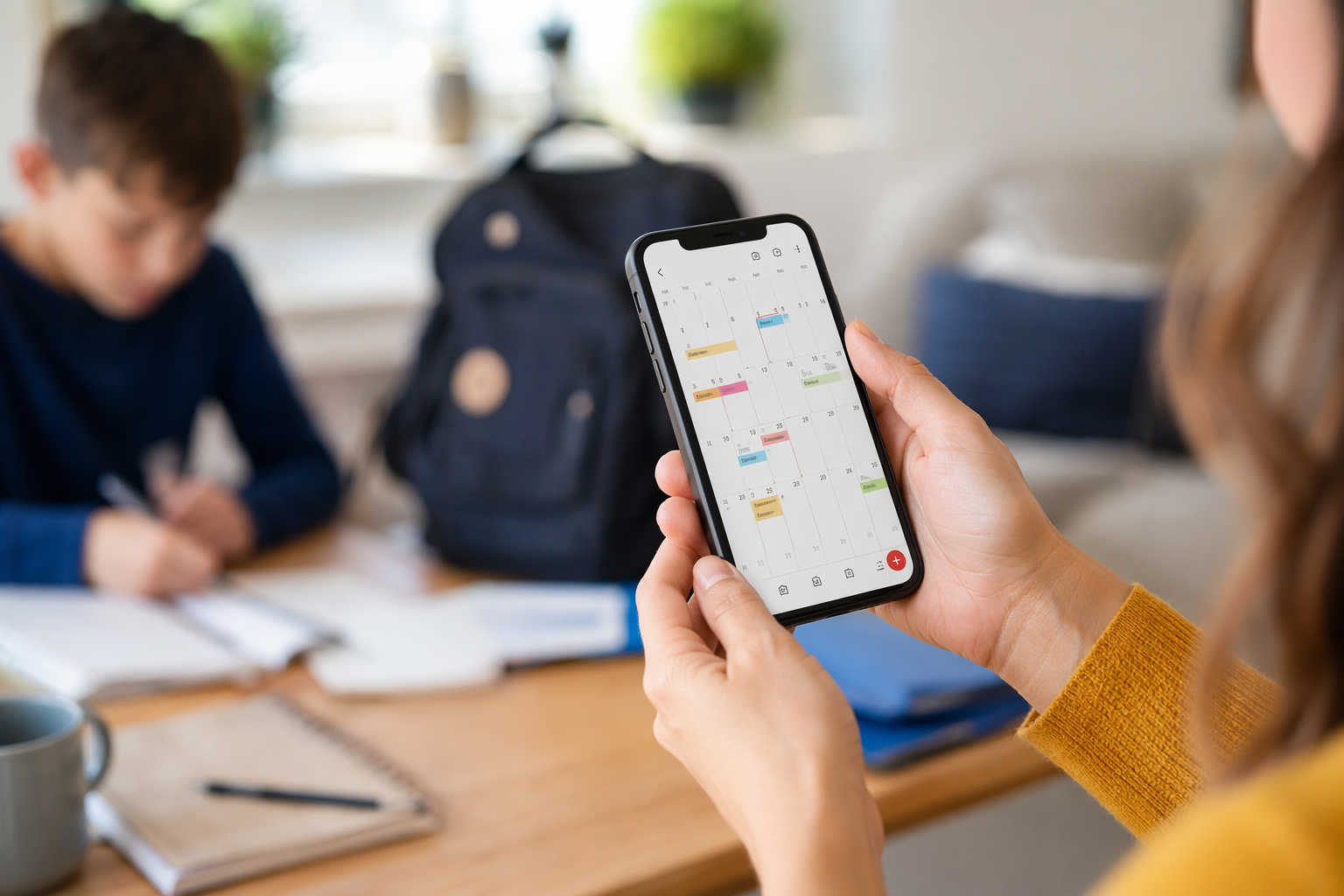
In this guide, you’ll learn practical ways to sync school calendar with family calendar systems on iPhone and Android, how to add school events to Google Calendar, and how to build a parent phone calendar setup that reduces chaos instead of adding another app to check. We’ll also show where a family calendar app for parents like try Zua free can help when school messages, sports schedules, and family logistics start piling up.
How to add school calendar to parents phone without turning it into a second job
The best setup is the one that requires the least maintenance. Before you start tapping around in settings, decide what kind of school calendar you have:
- Public school calendar link: often available as an ICS or subscription link.
- Google Calendar school feed: some schools publish events directly to Google Calendar.
- Parent portal calendar: a calendar inside systems like ClassDojo, ParentSquare, or a district app.
- Manual school schedule: if no feed exists, you’ll need to add major dates yourself.
Why bother connecting it at all? Because parents are already juggling too much. According to the U.S. Bureau of Labor Statistics, employed mothers and fathers spend substantial time on childcare and household tasks in addition to paid work, making time fragmentation a real issue in family life: BLS American Time Use Survey. A synced school calendar is a small operational win that can reduce mental load.
Step 1: Find the school calendar link or export option
- Check your school website for “Calendar,” “Events,” “Subscribe,” or “Download ICS.”
- Look in your parent portal or school communication app for calendar sync options.
- If you see “Add to Google Calendar,” “Subscribe,” or “Export,” copy that link.
If your school only offers a PDF or image, don’t stop there. You can still convert important dates into reminders manually or forward them into an organizer like Zua using a screenshot or email forwarding.
Step 2: Add it to the calendar app on your phone
Once you have the calendar link, the process usually looks like this:
- iPhone: use Calendar settings to subscribe to a calendar.
- Android: add it through Google Calendar in a browser or inside the app if the school provides a Google-compatible feed.
- Google Calendar: add the school feed as a subscribed calendar so events update automatically.
Subscription matters because school schedules change. A subscribed calendar updates itself when the school updates sports days, half days, exam schedules, or dress-up events. That is the real power of school calendar sync.
Step 3: Make it visible, but not noisy
A school calendar is most helpful when it is easy to see and impossible to ignore. In your phone calendar:
- Assign a distinct color, such as blue or orange.
- Turn on alerts only for important events like early dismissal or field trips.
- Keep low-priority items visible but not interruptive.
- Use event titles that are family-friendly, such as “School: PTA night” instead of just “Meeting.”
This is also where a family calendar app for parents can help, especially if one parent handles school logistics and the other handles pickup or after-school activities. Zua’s unified calendar view is designed to show who needs to be where, who is at work, and who is free to help. Learn more on our features page.
How to add school calendar to parents phone on iPhone
If you’re wondering, how do I add a school Calendar to my iPhone?, the cleanest approach is to subscribe to the school’s calendar feed so it appears inside the built-in iPhone Calendar app.
Option 1: Subscribe to a school calendar feed
- Open Settings on your iPhone.
- Go to Calendar or search for “Calendar” in Settings.
- Tap Accounts or Calendar Accounts.
- Select Add Account and then Other.
- Choose Add Subscribed Calendar.
- Paste the school calendar URL and save.
Once added, the calendar should appear in the iPhone Calendar app. If the calendar is hidden, check the “Calendars” list in the app and make sure it’s enabled.
Option 2: Use iCloud family sharing for shared family planning
If your goal is to sync school calendar with family calendar planning, you can keep the school calendar separate and then overlay it with a shared family calendar. Apple’s Family Sharing and shared calendars can make it easier to coordinate pickups, events, and appointments. For Apple’s official guidance, see: Apple Support: Set up Family Sharing.
This is especially useful when you want the school schedule visible in your own phone but also shared with a partner, caregiver, or co-parent.
Option 3: Add school events manually if no feed exists
If the school doesn’t provide a calendar feed, you can still create a reliable parent phone calendar setup by adding recurring dates manually:
- First day of school
- Half days
- Parent-teacher conference windows
- Holiday breaks
- Sports seasons and recital dates
- Spirit days and theme days
Manual setup takes longer up front, but it’s still better than hunting through emails every week.
How to add school calendar to parents phone and sync it with Google Calendar
For many families, the easiest answer to how to add school calendar to parents phone is to use Google Calendar as the family hub. It works across iPhone and Android, syncs with most phones, and plays well with shared calendars.
If you’re trying to add school events to Google Calendar, here’s the practical route:
Method 1: Subscribe to the school calendar in Google Calendar
- Open Google Calendar in a browser on your phone or desktop.
- Find Other calendars.
- Click + and choose From URL or Subscribe if available.
- Paste the school’s calendar link.
- Choose the color and save.
Once it appears in Google Calendar, the feed will sync to your phone automatically if your Google account is already connected. Google explains shared calendars and event management in its help center: Google Calendar Help.
Method 2: Import one-off school dates into a family calendar
If the school gives you a CSV or ICS file rather than a live feed, import it into Google Calendar. This is good for one-time term schedules, but remember: imported calendars won’t always update if the school changes the dates later.
Method 3: Use a shared family calendar for coordination
If the school calendar is one layer and family logistics are another, keep them both visible. A shared family calendar is ideal for:
- Drop-offs and pickups
- Doctor appointments
- After-school clubs
- Work travel
- Grandparent help days
This is where Zua stands out. Instead of forcing you to manually compare calendars, Zua reads from your existing calendars, detects conflicts, and helps you see the full picture in one place. That means less “who’s picking up?” back-and-forth and more reliable coverage.
School calendar sync mistakes that make parents miss important events
Even when families know how to add school calendar to parents phone, a few common mistakes can undermine the setup. Avoid these if you want the calendar to actually help.
| Common mistake | Why it causes problems | Better approach |
|---|---|---|
| Using only a school app | People forget to open it | Sync school calendar with family calendar tools you already use |
| Relying on screenshots | Dates don’t update when the school changes plans | Subscribe to a live calendar feed whenever possible |
| Too many alerts | Notification fatigue causes parents to ignore important reminders | Set alerts only for key events and deadlines |
| No color coding | School events blend into work and family events | Use a distinct color for all school-related entries |
| Not sharing with co-parents or caregivers | One person becomes the information bottleneck | Use a shared family calendar or selective sharing |
The most effective parent phone calendar setup is the one that reduces friction for the whole household. If both parents can see the school schedule, you’ll spend less time sending screenshots and more time acting on the same plan.
Can you put school mode on a phone?
Many parents ask this because they want fewer distractions during school hours. The short answer is yes—at least partially. You can use phone features like Do Not Disturb, Focus modes, or bedtime/school routines to reduce interruptions when the school day starts.
That said, “school mode” is not the same as a school calendar sync. A focus mode helps you avoid distractions; a school calendar helps you remember where you need to be. Used together, they’re powerful:
- School calendar: tells you what is happening and when.
- Focus mode: reduces irrelevant notifications while you’re handling it.
On iPhone, Apple’s Focus modes can be customized around times, locations, or apps. On Android, similar tools exist through Digital Wellbeing and Do Not Disturb settings. If you’re building a calmer family workflow, pair your schedule with a focus mode that mutes non-urgent alerts during class drop-off, meetings, or homework time.
How Zua helps parents keep the school calendar from becoming a mess
Most calendar tools are great at storing dates. Fewer are good at turning school information into action. That’s where Zua is useful for busy families.
Zua can read from calendars already on your device, analyze what’s coming up, and feed relevant events into a family-friendly view. It helps parents avoid double-bookings, surfaces conflicts early, and supports privacy controls so you can decide what is shared with the family versus kept personal. If you need to sync school calendar with family calendar systems without constantly retyping everything, Zua is built for that job.
It also handles the messy parts of real family life:
- Forward a school newsletter by email and let Zua extract the dates.
- Share a screenshot of a class reminder and turn it into an organized event.
- Use WhatsApp to send a voice note or message and capture the plan instantly.
- Assign school tasks to the parent who is actually free, based on calendar availability.
If you’re tired of being the family’s “calendar clerk,” explore the product details on our features page or try Zua free.
Best parent phone calendar setup for school weeks
If you want a setup that lasts, use this structure:
- School calendar: subscribe or import the official school schedule.
- Family calendar: keep everyone’s appointments, sports, and work events in one shared view.
- Personal calendars: keep private events separate when needed.
- Task capture: turn emails, screenshots, and voice notes into action items.
- Weekly review: look at the next 7 days every Sunday night.
That structure turns calendar chaos into a routine. The school calendar becomes a dependable source of truth, not another thing you have to remember to check.
Frequently Asked Questions
How do I add a school Calendar to my iPhone?
The easiest way is to subscribe to the school’s calendar feed through the iPhone Calendar settings. If the school only gives you a link or ICS file, paste or import it so events appear in your built-in Calendar app. If no feed is available, manually add the key school dates.
Can you put school mode on a phone?
Yes. On iPhone and Android, you can use Focus modes or Do Not Disturb to reduce notifications during school hours. That said, school mode is not a replacement for a school calendar sync—it just helps you stay focused while using the calendar.
How to sync Calendar with family on iPhone?
Use shared calendars through Apple’s Family Sharing or a shared iCloud calendar. This lets both parents see school events, pickups, appointments, and activities in one place. For official Apple steps, see Apple Support for Family Sharing.
How do I add a family Calendar to my phone?
You can add a family calendar by subscribing to a shared calendar link, joining a shared Apple or Google calendar, or using a family calendar app for parents. The key is to make sure everyone updates one central schedule instead of texting changes back and forth.